
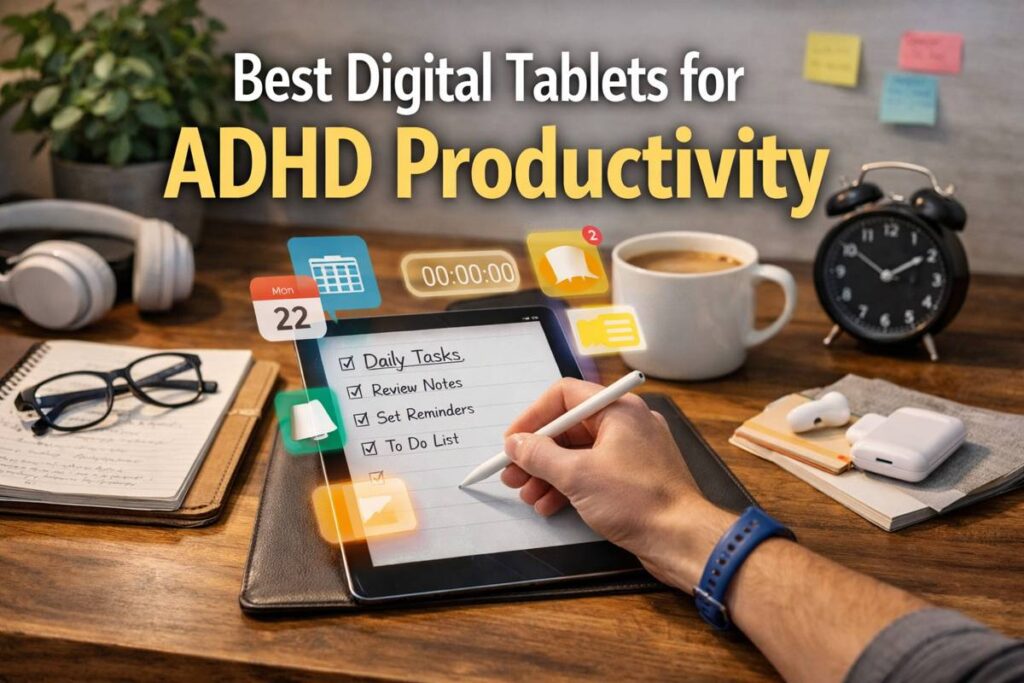
Best Digital Tablets for ADHD Productivity: Quick Picks
• Best all-round value: Samsung Galaxy Tab S9 FE
• Best premium mainstream option: Apple iPad Air 11-inch
• Best budget-friendly Apple pick: Apple iPad (A16)
• Best for distraction-free writing: reMarkable 2
• Best for e-ink and Android flexibility: BOOX Note Air5 C
Quick Picks by Situation
If you want a versatile tablet that balances productivity features, note-taking, entertainment, and value, the Samsung Galaxy Tab S9 FE is a strong all-round choice. Its larger display and included S Pen make it useful for planning, handwritten notes, calendars, and everyday task management.
If you want a more powerful premium tablet for multitasking, creative work, note-taking, and productivity apps, the Apple iPad Air 11-inch is the strongest mainstream option. It offers more performance than most people will need for daily organisation while still being light enough to use around the home or take to work.
If you want access to Apple productivity apps at a lower price, the Apple iPad (A16) is the most budget-friendly Apple option in this comparison. It can support reminders, digital planning, note capture, calendars, and task-management apps without requiring the higher cost of an iPad Air.
If your biggest challenge is distraction and you mainly want a focused place for handwriting, reading, and organising documents, the reMarkable 2 offers the simplest experience. Its limited feature set may make it easier to concentrate because it removes many of the apps, notifications, and entertainment options found on conventional tablets.
If you prefer an e-ink screen but still want access to a wider range of apps and features, the BOOX Note Air5 C provides more flexibility. Its Android-based system supports handwritten notes, document reading, organisation, and compatible productivity apps while retaining the calmer appearance of a colour e-ink display.
Introduction
Digital tablets can sit in an interesting middle ground between a laptop and a phone. They are usually more visible, more tactile, and easier to carry around than a laptop, but they may still give you more space than a phone for note-taking, planning, reminders, and focused reading. That combination can be useful if you want a device that may help with organisation without always pulling you into the same distractions that sit on your phone.
That said, not every tablet helps in the same way. Some tablets are fantastic for calendars, timers, task management apps, and handwritten notes. Others feel powerful on paper but become a distraction machine once you start opening video, messaging, and browsing apps. The better question is not just which model has the strongest specs, but which one fits how you actually work on a difficult day.
If you are also exploring other digital tools for structure and focus, it may help to read our guide to distraction-blocking apps alongside this one.
Who This Guide Is For
This guide is for adults who want a tablet that may support productivity in practical daily life. That may include people who want one place for calendars, task lists, reminders, digital notes, reading, or planning routines. It may also suit those who find that a phone is too small, too cluttered, or too easy to drift away from.
It may be especially useful if you are looking for a device to support:
- Task planning and routine support
- Digital note-taking and list capture
- Reminder visibility across the day
- Reading and focused work with fewer distractions
- A more structured workspace at home or on the move
Key Takeaways
- Mainstream tablets suit app-heavy productivity routines
- E-ink tablets often reduce visual clutter better
- Stylus support matters for quick capture and planning
- Battery life affects how reliably a device stays in your routine
- Reminder visibility is often more important than raw speed
How These Products Were Evaluated
I looked at these tablets through a productivity lens rather than a raw spec-sheet lens. That means I focused less on gaming power and more on the things that often matter in everyday use: how easy the tablet is to pick up, how comfortable it is to use regularly, how visible reminders and calendars can be, whether handwriting feels natural, and whether the overall setup may help reduce distraction rather than add to it.
The main areas I used were battery life, ease of charging, notification visibility, compatibility with common productivity systems, stylus and note-taking support, and how realistic the tablet feels for regular routines. In practice, a slightly less powerful device can still be the better productivity choice if it is easier to keep charged, easier to read, and less likely to pull you into side-tracks.
Quick Comparison Table
| Product | Battery Life | Compatibility | Reminder Features | Charging |
|---|---|---|---|---|
| Apple iPad (A16) | Up to 10 hours | Apple ecosystem | Calendar, widgets, app alerts | USB-C |
| Apple iPad Air 11-inch | Up to 10 hours | Apple ecosystem | Calendar, widgets, app alerts | USB-C |
| Samsung Galaxy Tab S9 FE | All-day use | Android ecosystem | Widgets, app alerts, Samsung reminders | USB-C fast charging |
| reMarkable 2 | Up to 2 weeks | reMarkable app sync | Note-focused, limited alerts | USB-C |
| BOOX Note Air5 C | Long e-ink battery life | Android apps | App-based reminders, calendars | USB-C |
Focus Environment Fit
If your ideal setup involves multiple apps, visible widgets, and a familiar app store, the iPad models and Samsung tablet make the most sense. They fit well if your productivity style includes calendar blocking, digital to-do lists, timers, and app-based routine support. They also make more sense if you need video calls, web access, split-screen multitasking, or cross-device syncing.
If you already know that open app stores can pull you sideways, the e-ink options become much more appealing. The reMarkable 2 is especially strong for writing, reading, and simplifying your workspace. The BOOX model sits in the middle, offering the calmer feel of e-ink while still allowing more app flexibility than the reMarkable. From my own experience, devices that remove some colour and visual noise can make planning sessions feel less mentally busy, especially when I am already overloaded.
If you want a broader setup that combines a tablet with external prompts, you may also want to explore smart devices and wearables for ADHD UK.
Focus Score Comparison Table
| Product | Distraction Control | Note-Taking | Reminder Visibility | Daily Ease | Focus Score |
|---|---|---|---|---|---|
| Apple iPad (A16) | 7/10 | 8/10 | 8/10 | 9/10 | 8/10 |
| Apple iPad Air 11-inch | 7/10 | 9/10 | 8/10 | 9/10 | 8.5/10 |
| Samsung Galaxy Tab S9 FE | 7.5/10 | 8.5/10 | 8.5/10 | 8.5/10 | 8.5/10 |
| reMarkable 2 | 10/10 | 9/10 | 4/10 | 8/10 | 7.75/10 |
| BOOX Note Air5 C | 8.5/10 | 9/10 | 7/10 | 7.5/10 | 8/10 |
Apple iPad (A16)
Who It May Suit
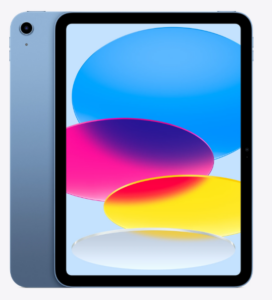
The standard iPad may suit people who want a familiar, reliable tablet for reminders, note-taking, planning, and general daily use without moving into premium pricing. It makes sense if you want one device for productivity apps, a calendar dashboard, and quick note capture.
- Good for everyday planning
- Works well with mainstream apps
- Useful for mixed work and home use
Why It May Help
This model is strong because it stays simple. You can use Apple Reminders, calendar widgets, note apps, and focus modes without much setup friction. The screen is large enough for readable lists and routines, while still being light enough to carry around easily. It is also easier to recommend than some cheaper unknown-brand tablets because app support and software reliability are generally more predictable.
Friction Points to Consider
- Apple Pencil accessories add cost
- Can still become a distraction hub
- Less specialised for handwriting than e-ink
Practical Reality Check
If you need one tablet that handles a bit of everything, the standard iPad is a strong option. It is not the most distraction-proof device here, but it is one of the easiest to fit into real daily life.
Read the full Apple iPad (A16) review to see whether it suits your productivity setup.
Apple iPad Air 11-inch
Who It May Suit
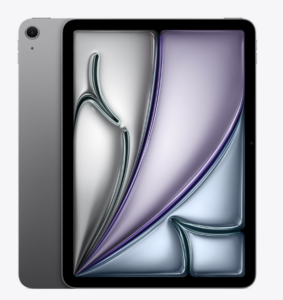
The iPad Air 11-inch may suit users who want a more premium Apple experience with stronger multitasking headroom, smoother stylus use, and a device that can handle both productivity and creative work comfortably.
- Strong choice for heavier app use
- Better for handwriting and multitasking
- Suited to users already in the Apple ecosystem
Why It May Help
If your routine involves switching between planning apps, note apps, documents, and calendar views, the iPad Air feels more spacious and a bit more fluid than the standard model. That matters if friction makes you avoid tools altogether. It also pairs well with a structured setup built around Apple Notes, calendar blocking, and routine reminders. In everyday use, it feels like a device you can keep open on a desk without it feeling too bulky.
Friction Points to Consider
- Higher cost than the standard iPad
- Accessories can push the budget up further
- Still full of entertainment distractions
Practical Reality Check
This is one of the easiest tablets here to recommend if budget is less tight and you want a mainstream productivity device that can grow with you. It is powerful, polished, and flexible, but it only helps if you build a clean setup rather than filling it with clutter.
Read the full Apple iPad Air 11-inch review for a closer look at its productivity fit.
Samsung Galaxy Tab S9 FE
Who It May Suit
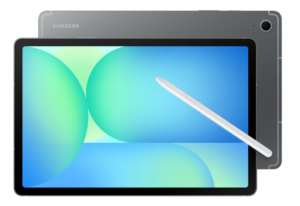
The Galaxy Tab S9 FE may suit users who want a strong Android tablet with good battery life, solid stylus support, and a more affordable price point than many premium rivals. It is especially appealing if you prefer Google Calendar, Google Keep, Todoist, TickTick, Notion, or other Android-friendly apps.
- Excellent value for Android users
- S Pen support is very practical
- Good balance of work and flexibility
Why It May Help
This tablet stands out because it gives you a lot of practical productivity tools without feeling too stripped back or too expensive. The included pen is a real advantage, especially if you like quickly scribbling tasks, diagrams, or rough notes. Reminder visibility is also good, because Android widgets and home-screen layouts can make a tablet feel more like a visible planning dashboard than a closed app device. From my own experience, being able to keep a calendar or task widget in sight can help users notice tasks more easily than burying everything inside app menus.
Friction Points to Consider
- Not as calm as an e-ink device
- Android layouts can become messy
- Large enough to feel less grab-and-go
Practical Reality Check
If you want the best blend of flexibility, handwriting support, and sensible value, this is one of the strongest options in the guide. For many people, it is the easiest middle-ground pick.
Read the full Samsung Galaxy Tab S9 FE review to see whether it matches your workflow.
reMarkable 2
Who It May Suit
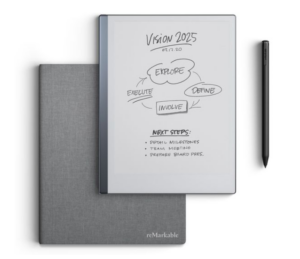
The reMarkable 2 may suit people who specifically want a distraction-reduced writing tablet rather than a full entertainment and app device. It is best for note-taking, reading, outlining, planning, and keeping a cleaner mental workspace.
- Best for distraction-free writing
- Excellent for focused reading sessions
- Useful for handwritten planning routines
Why It May Help
The biggest strength here is not speed or app variety. It is the way the device narrows your options and makes the workflow feel more deliberate. If ordinary tablets tend to turn into scrolling machines, the reMarkable may feel like a relief. It is also very comfortable for longer handwritten sessions and can suit users who think better when they write things out rather than typing them.
Friction Points to Consider
- Limited reminder and app ecosystem
- Less useful for colourful dashboards
- Not ideal if you need many apps
Practical Reality Check
This device is excellent for note-taking, but it is not a full replacement for a mainstream productivity tablet. It works best if your main problem is too much digital noise, not too little power.
BOOX Note Air5 C
Who It May Suit
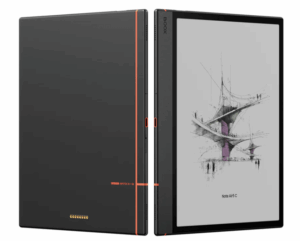
The BOOX Note Air5 C may suit people who like the calmer feel of e-ink but do not want to give up Android app access completely. It is a more niche choice, but an interesting one if you want reading, writing, and some app-based productivity in a less visually busy format.
- Good for reading and writing
- Allows Android productivity apps
- Useful for a calmer visual workflow
Why It May Help
This model tries to bridge two worlds. You get a paper-like display and a longer-lasting e-ink style battery pattern, but you also keep access to Android apps. That makes it more flexible than the reMarkable if you want calendars or third-party tools in the same device. The calmer screen may also reduce the feeling of constant visual demand that some bright tablets create.
Friction Points to Consider
- More niche software experience
- App behaviour can feel less polished
- Colour e-ink is calmer, not vivid
Practical Reality Check
This is the most specialist option in the guide. If the idea clicks with your workflow, it may be a very good fit, but it is less universally simple than an iPad or Samsung tablet.
Read the full BOOX Note Air5 C review to see whether it offers the right balance for your setup.
Buying Guide: Choosing a Digital Tablet for ADHD Support
Comfort and Usability
The best tablet is often the one you will genuinely pick up every day. Weight, screen feel, stylus comfort, and startup friction all matter. If a device feels awkward, heavy, or too fiddly, it may end up sitting unused. For many users, a slightly simpler tablet with a cleaner setup is better than a more powerful model that feels mentally noisy.
Notification Visibility
If reminders are one of your main reasons for buying a tablet, think carefully about how visible they will actually be. Mainstream tablets do better here because they support widgets, push alerts, and app ecosystems built around reminders and task management. E-ink devices may help with focus, but some are much less useful if your priority is visible prompting across the day.
Battery Life
Battery life matters more than it first appears. A tablet that is often flat can quietly fall out of your routine. If you want something to live on a desk as a planning board, all-day battery may be enough. If you want a device for travel, meetings, and regular writing sessions, longer battery life becomes more valuable. From my own experience, the best productivity device is often the one that is still ready when you remember to use it.
Reminder Features
Think about whether you want active reminders or passive support. Active reminders include alarms, recurring tasks, widgets, and visible alerts. Passive support is more about giving you a clear, calm place to write plans and review them. Mainstream tablets tend to do active prompting better. E-ink tablets tend to support calmer planning and reading better.
Frequently Asked Questions
Are tablets better than phones for productivity?
They can be, especially if you benefit from a larger screen, stylus notes, or a more visible planning setup. A tablet may help users notice tasks more easily than a phone, but it depends on how the device is set up.
Is an iPad or Android tablet better for reminders?
Both can work well. iPads are strong if you already use Apple apps and devices. Android tablets are often more flexible for widgets and custom home-screen layouts.
Are e-ink tablets good for productivity?
They may be very good for writing, reading, planning, and reducing distraction. They are usually less strong for rich reminder systems and app-heavy multitasking.
Do I need a stylus?
Not always, but a stylus can make a big difference if you prefer handwriting, visual planning, sketch notes, or quick brain-dump capture.
Final Verdict
If you want the simplest mainstream option at a more accessible price, the Apple iPad (A16) is a very sensible starting point. If you want a more premium all-round Apple device for multitasking and note-taking, the iPad Air 11-inch is the stronger choice. If you prefer Android and want a great balance of value, pen support, and reminder flexibility, the Samsung Galaxy Tab S9 FE is arguably the easiest recommendation for most people.
If your biggest problem is distraction rather than lack of features, the reMarkable 2 is the most focused option here. And if you want something calmer than a standard tablet but more flexible than a pure writing device, the BOOX Note Air5 C is the most interesting middle-ground choice.
For broader support around focus tools and routines, you can also read our guide to distraction-blocking apps and our smart watch guide for reminder support.
Start with the option that best matches your setup: Apple iPad (A16), Apple iPad Air 11-inch, Samsung Galaxy Tab S9 FE, reMarkable 2, or BOOX Note Air5 C.