
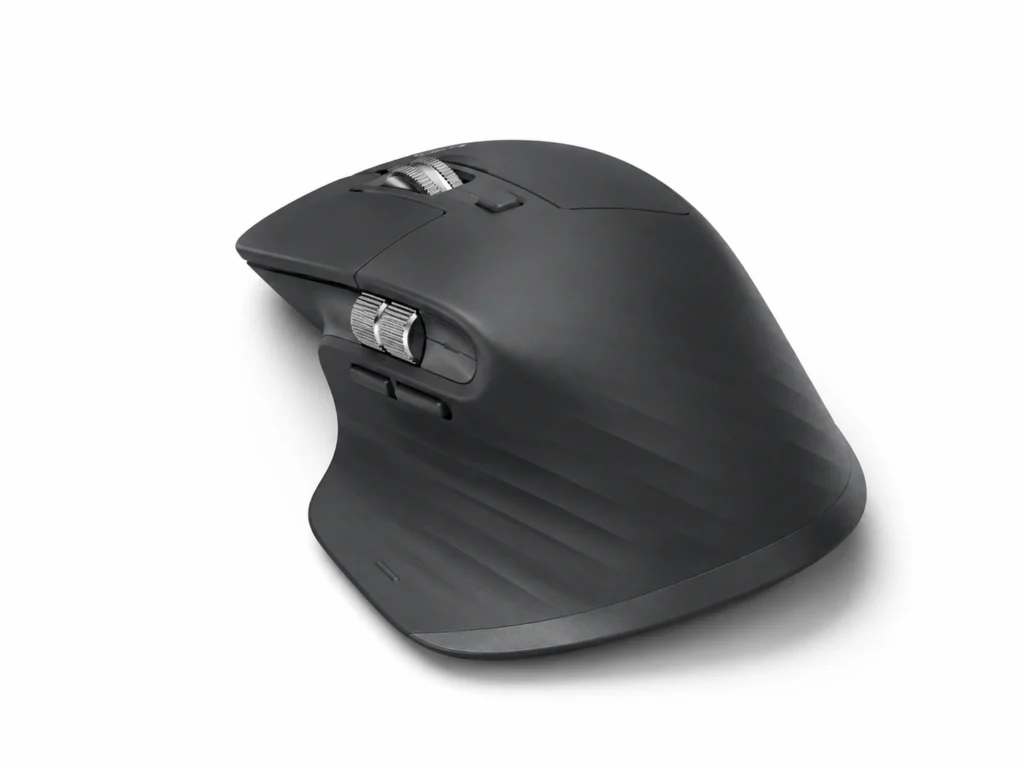
At a Glance
-
- Right-handed productivity mouse designed for longer desk-based working sessions
- MagSpeed wheel switches naturally between precise and rapid scrolling
- Quiet Clicks reduce the noise created by repeated mouse use
- Horizontal thumb wheel is useful for wide spreadsheets and timelines
- Customisable buttons can reduce repeated menu searches and keyboard actions
- Connects to as many as three compatible devices through Bluetooth or Logi Bolt
- Makes the most sense for regular computer users who already know where its additional controls could save them time or effort
Introduction
This review looks at whether the Logitech MX Master 3S can remove some of the small, repetitive interruptions that build up during computer work. Moving through long webpages, searching menus for familiar commands and repeatedly travelling across a spreadsheet may not seem particularly demanding, but each interruption creates another opportunity for your attention to drift away from the task you meant to finish.
The MX Master 3S is not an ADHD treatment or a shortcut to effortless productivity. Its value is much more practical: frequently used controls can sit directly underneath your fingers, while fast scrolling and quieter clicks make everyday navigation feel less intrusive. The wider ADHD Productivity Tools UK Guide explores the same principle across a complete setup, where the aim is to remove avoidable effort without creating another complicated system to maintain.
It is important to be precise about the model reviewed here. This article covers the Logitech MX Master 3S rather than the newer MX Master 4, the older MX Master 3 or the Mac-specific and Business editions. Some current listings describe the standard retail model as the MX Master 3S Bluetooth Edition, and the included accessories can vary. The core mouse combines a sculpted right-handed shape with Quiet Clicks, an 8,000 DPI sensor, MagSpeed scrolling, a horizontal thumb wheel and customisable controls through Logi Options+.
Logitech MX Master 3S Review for ADHD Productivity: Key Features
The MX Master 3S offers considerably more control than a basic wireless mouse, although its most useful features remain physical and easy to understand. You don’t need to decide what every button should do straight away. It may be easier to use it as a normal mouse at first, then customise one control when you notice yourself repeating the same awkward action.
- Contoured right-handed body with a dedicated thumb-rest area
- Quiet Clicks designed to reduce left and right click noise
- MagSpeed electromagnetic scroll wheel with precise and free-spinning movement
- Separate horizontal thumb wheel
- Back, forward, gesture and wheel-mode controls
- Button customisation and application-specific profiles through Logi Options+
- Smart Actions and Actions Ring support through current versions of Logi Options+
- 8,000 DPI sensor capable of tracking on many surfaces, including suitable glass
- Easy-Switch support for up to three paired devices
- Bluetooth and Logi Bolt wireless connectivity
- USB-C rechargeable battery lasting up to 70 days, depending on use
- Rapid charging providing approximately three hours of use from a one-minute charge
Who This Guide Is For
This guide is primarily for people who spend several hours a day moving between browser pages, documents, spreadsheets and desktop applications. The mouse becomes more interesting when you keep running into the same small annoyances, such as scrolling laboriously through research, moving across wide sheets or switching between a work laptop and personal computer at the same desk.
If you only use a computer occasionally, many of the additional controls may remain untouched and a simpler mouse could provide nearly the same practical value for much less money. The MX Master 3S makes more sense when you can already name the actions that interrupt you, because that gives its features a useful job from the moment you begin using it.
Key Takeaways
- MagSpeed scrolling is the feature most people are likely to appreciate immediately
- Quiet Clicks may make repetitive desk work feel less distracting in a calm environment
- The horizontal thumb wheel is especially useful for wide spreadsheets and timelines
- Customised buttons work best when limited to a few memorable actions
- The substantial right-handed shape suits permanent desk use better than frequent travel
- Multi-device switching is valuable when two or more computers share one workspace
How It Works
At its simplest, the MX Master 3S behaves like an ordinary wireless mouse. The difference becomes apparent when you move through a long page: its MagSpeed wheel provides controlled, line-by-line movement when turned gently, then travels rapidly through a document when given a stronger spin. Rather than repeatedly rolling a conventional wheel or dragging a narrow scrollbar, you can move quickly to the relevant area and return to precise scrolling once you arrive.
The second wheel sits above the thumb and handles horizontal movement. It may see little use during ordinary browsing, but its purpose becomes clear in a spreadsheet containing more columns than the screen can display. Moving sideways directly from the mouse feels less disruptive than finding and dragging the horizontal bar at the bottom of the window, particularly when you have to repeat the action throughout the day.
Logi Options+ provides the deeper customisation. Buttons can perform different actions in different applications, although there is a sensible limit to how far this should go. Once there are too many shortcuts to remember, the mouse can start creating the same mental effort it was supposed to remove. Two or three controls that become familiar without much thought may be far more useful.
Why It May Help (ADHD Context)
Computer work can go off course in the few seconds it takes to find the control you need. You open a menu for a familiar command, notice an unrelated notification, glance at another tab and suddenly forget what you were trying to finish. The menu search wasn’t difficult, but it gave your attention somewhere else to go.
Resources such as ADDitude discuss ADHD distraction and the value of arranging your surroundings around how your attention actually works. A mouse can’t prevent distraction, but putting a familiar action directly under your fingers may mean fewer trips through menus where something else can catch your eye. Once a shortcut feels familiar, it can quietly remove a step without giving you another thing to think about.
The quieter clicking is relevant in a different way. On a noise-sensitive day, the repeated sound of ordinary mouse buttons can become surprisingly noticeable, especially in an otherwise peaceful room. Quiet Clicks will not produce complete silence, but reducing that sharp, repetitive noise may help the mouse blend into the workspace instead of constantly announcing its presence.
Real-World Use Cases
Research-heavy work is one of the clearest examples. If you routinely compare products, read long reports or move backwards and forwards through search results, rapid scrolling and thumb-operated browser navigation reduce the physical effort spent travelling through information. The improvement is not dramatic in any single moment, but it becomes more meaningful when the same movements occur hundreds of times across a working week.
Spreadsheet work gives the horizontal wheel an obvious role. A large tracker, budget or content plan can stretch far beyond the visible columns, and repeatedly reaching for the bottom scrollbar breaks the natural rhythm of reviewing the information. Keeping that sideways movement under your thumb makes navigating the sheet feel more direct.
Website management and content production can also suit the mouse well. When your workflow involves WordPress, research tabs, image folders and written documents, one carefully selected shortcut might open Task View, while another handles copying or switching applications. The aim is not to assign something to every button; it is to identify the actions that repeatedly pull you away from the work itself.
Feature Breakdown Table
| Feature | What It Means in Practice | Why It May Matter for ADHD |
|---|---|---|
| MagSpeed scrolling | Move precisely through short sections or rapidly through long pages | Means fewer repeated wheel movements or attempts to drag a small scrollbar through a long page |
| Quiet Clicks | Left and right clicks create considerably less noise than those on the previous generation | May make repetitive mouse use less noticeable on noise-sensitive days |
| Thumb wheel | Provides separate horizontal scrolling | Removes awkward navigation from spreadsheets and wide layouts |
| Customisable controls | Frequently used commands can be placed directly under your fingers | Can keep a frequently used command somewhere familiar instead of sending you back through the same menus |
| Three-device switching | One mouse can remain paired with as many as three compatible devices | Makes changing computers at the same desk feel less disruptive |
| 8,000 DPI sensor | Provides adjustable, accurate tracking across high-resolution displays and many surfaces | Allows comfortable pointer movement to suit the screen and workspace |
Focus Environment Fit
The MX Master 3S feels most at home in a permanent desk setup. At approximately 141 grams, it is larger and heavier than a compact travel mouse, while its sculpted right-handed body gives the palm and thumb a more deliberate place to rest. That substantial shape may be welcome during long computer sessions, but it is not automatically comfortable for every hand or grip.
The MX Master 3S adds more buttons to the desk, but it can make what happens on screen feel simpler when those buttons replace menus, scrollbars and repeated keyboard movements. That only remains helpful while the controls are easy to remember. If every button has a different job in every application, the mouse can quickly become another complicated system you avoid using properly.

Real Use Review
MagSpeed scrolling is likely to be the first feature that makes the MX Master 3S feel noticeably different from a basic mouse. Long webpages and documents are where a conventional wheel can become irritating, because you spend far more time physically moving through information than you realise. A quick flick covers a large section, while the wheel still allows controlled movement when you reach the material you need.
The quieter buttons are less visually impressive but potentially more valuable over time. Their softer sound does not change what the mouse does, although it makes repeated clicking feel calmer and less intrusive. When you are trying to create a workspace with fewer sensory interruptions, that small refinement may matter more than another complicated software feature.
Customisation becomes genuinely useful once the initial temptation to experiment has passed. It is easy to spend an evening creating application profiles and convincing yourself that configuration is productive work. You may get more from the mouse by starting with the one or two actions that keep interrupting you and leaving the remaining buttons alone until an obvious use for them appears.
Friction Points to Consider
- The pronounced right-handed shape will not suit left-handed users
- Its size and weight make it less convenient for frequent portable working
- The price is difficult to justify if you only need basic pointing and scrolling
- The thumb wheel may go largely unused outside spreadsheets and wide layouts
- The Easy-Switch button is underneath the mouse, so changing devices requires lifting or turning it over
- Button customisation, application profiles, Flow and other advanced functions depend on Logi Options+, which is primarily available for Windows and macOS
- Excessive customisation can become another system to remember and maintain
- Standard, Bluetooth, Mac and Business listings may differ in whether a Logi Bolt receiver is included
Practical Reality Check
Before buying the MX Master 3S, it is worth asking what genuinely bothers you about your current mouse. If your current mouse already feels comfortable, disappears into the background and handles everything you ask of it, replacing it with a premium model is unlikely to transform your productivity. You may enjoy using it, but that is different from solving a genuine problem.
The case becomes stronger when you can name what needs improving. Endless scrolling, noisy clicking, awkward spreadsheet navigation, repeated menu searches or changing between computers all give the additional controls a reason to be there. You may find it easier to begin with the standard setup and change one button when an obvious use appears, rather than trying to design the perfect collection of shortcuts before you have done any work.
Buying Guide
Begin by checking the exact model rather than relying on a listing that simply says “MX Master”. This review covers the Logitech MX Master 3S hardware, but current retail packages aren’t all identical. The Bluetooth Edition supports Logi Bolt but may not include the receiver, the Mac edition is packaged around an Apple setup, and the Business edition is intended primarily for organisational deployment. The newer MX Master 4 adds hardware features including haptic feedback that aren’t covered in this review.
Your dominant hand and preferred grip matter just as much as the specifications. The sculpted body is designed for right-handed use and supports more of the palm than a compact mouse, so anyone who prefers a small fingertip-controlled model may find it unnecessarily substantial. It is also worth checking whether the listing includes a Logi Bolt receiver if you intend to connect through USB rather than Bluetooth.
Finally, consider the work you perform rather than counting features. Long documents, browser research, spreadsheets, high-resolution monitors and a multi-computer desk give the MX Master 3S an obvious role. If you are also considering the matching keyboard, Logitech MX Keys S Review for ADHD Productivity looks at whether that part of the setup solves a separate everyday problem. If neither device addresses something that already interrupts you, a simpler and less expensive setup may be the more sensible choice.
Frequently Asked Questions
Is the Logitech MX Master 3S good for ADHD productivity?
It can suit an ADHD-friendly workspace when repetitive navigation, clicking noise or menu searching regularly interrupts your momentum. Its value comes from reducing avoidable steps rather than directly changing ADHD symptoms.
What is the difference between the MX Master 3S and MX Master 4?
The MX Master 4 is the newer generation and adds hardware features including customisable haptic feedback, along with revised connectivity and controls. Actions Ring is also available with the MX Master 3S through current versions of Logi Options+, but it does not provide the MX Master 4’s haptic response. Both models offer MagSpeed scrolling, Quiet Clicks, an 8,000 DPI sensor and programmable controls.
Is the horizontal thumb wheel useful for spreadsheets?
Yes, particularly when a sheet contains more columns than the screen can display. It allows you to move sideways without repeatedly finding and dragging the horizontal scrollbar.
Can the MX Master 3S connect to more than one computer?
Yes. It can remain paired with as many as three compatible devices, with a button underneath the mouse used to select the active connection.
Do I need to customise all the buttons?
No. Keeping the controls simple is often more useful, especially at the beginning. Use the default layout first, then customise a button only when you notice a repetitive action that would genuinely be easier from the mouse.
Alternatives to Consider
If you mainly need ordinary pointing and scrolling, a simpler Logitech wireless mouse may be less expensive and easier to carry. You would lose MagSpeed scrolling, the horizontal wheel and extensive customisation, but those omissions may not matter if your computer use is light or your present mouse already feels comfortable.
The MX Anywhere range is worth considering when portability is the priority. Its smaller shape fits more naturally into a laptop bag, although it does not provide the same palm-supporting design or dedicated thumb wheel as the MX Master 3S. Someone who regularly changes work locations may find that trade-off more practical than carrying a large desktop mouse.
The MX Master 4 is the natural step up if its haptic feedback, revised controls or stronger wireless connection solve something you would genuinely notice. Actions Ring alone is no longer a reason to choose the newer mouse because Logitech now supports it on the MX Master 3S through Logi Options+. The MX Master 4 still offers more hardware capability, but it also introduces more settings that may or may not earn their place in everyday use.
Your mouse may not be the part of your desk that’s actually bothering you. Best ADHD Desk Setup Tools for Focus and Productivity (UK Guide) compares different ways of addressing lighting, keyboard comfort, mouse control, organisation and background noise. If you keep noticing glare or the desk becoming gloomy later in the day, Why Lighting Matters for ADHD Productivity looks more closely at why the light around a monitor can become so distracting and what might help.
Final Verdict
The decision comes down to whether scrolling, clicking and moving around your computer keep interrupting you more than they should. MagSpeed scrolling, Quiet Clicks, the horizontal wheel, programmable buttons and multi-device support give the MX Master 3S a clear purpose for someone who spends hours working with long documents, browser research, spreadsheets or more than one computer.
Its ADHD value is practical rather than dramatic. It won’t create motivation or stop an interesting browser tab from stealing your attention, but it can shorten some of the small interruptions that break your concentration. If you can identify where its additional controls would save effort, the MX Master 3S has a clear purpose; if a basic mouse already disappears into the background and does everything you need, there is much less reason to upgrade.
Build a Simple ADHD Productivity System
If you want to bring everything together into one clear setup, this guide shows how tools, apps, and routines can work as one system.